
Send files to your TV and install APKs from your phone
Everything on your phone, on the big screen. Send photos, videos, PDFs and apps to your TV over your own Wi-Fi, and install APKs on Android TV, Google TV and Fire TV straight from your phone. No cable, no PC, no cloud, no account.
What it does
Send files to TV, send APKs to TV, cast to any TV
SATV – Send Apps to TV is one free app for your Android phone and your TV. Three jobs, done properly.
Send files to TV
Photos, videos, music and PDFs go straight from your phone to the TV's storage over Wi-Fi and stay there. No size limit, no re-compression. How to send files to Android TV.
Send APK to TV
Send an installed app or an APK, APKS, XAPK or APKM file to Android TV, Google TV or Fire TV. Split APKs are installed together, which is why most sideloads fail elsewhere. Install APK on Android TV.
Cast to almost any TV
Finds your TV over DLNA and hands it the file, so the TV plays it at full quality while your phone stays free. Works on Samsung, LG and Hisense sets where screen mirroring will not.
APK installer for Android TV
How to send an APK to your TV in three steps
- Install SATV on your phone and on the TV. From Google Play on both; on a Fire TV Stick, the phone gives you a local address to download the TV half. How to sideload a Fire TV Stick.
- Pick an app or APK on the phone and choose the TV. Both on the same Wi-Fi. Installed apps, APK, APKS, XAPK and APKM files all work; see the XAPK installer guide.
- Accept on the TV and press Install. Android's own installer does the rest. Allow "Install unknown apps" for SATV the first time.
Nothing leaves your network: files move directly between your devices, with no upload, no server and no account. The app is free, and ads appear on the phone only, never on the TV.
Real test
What it looks like on a real TV
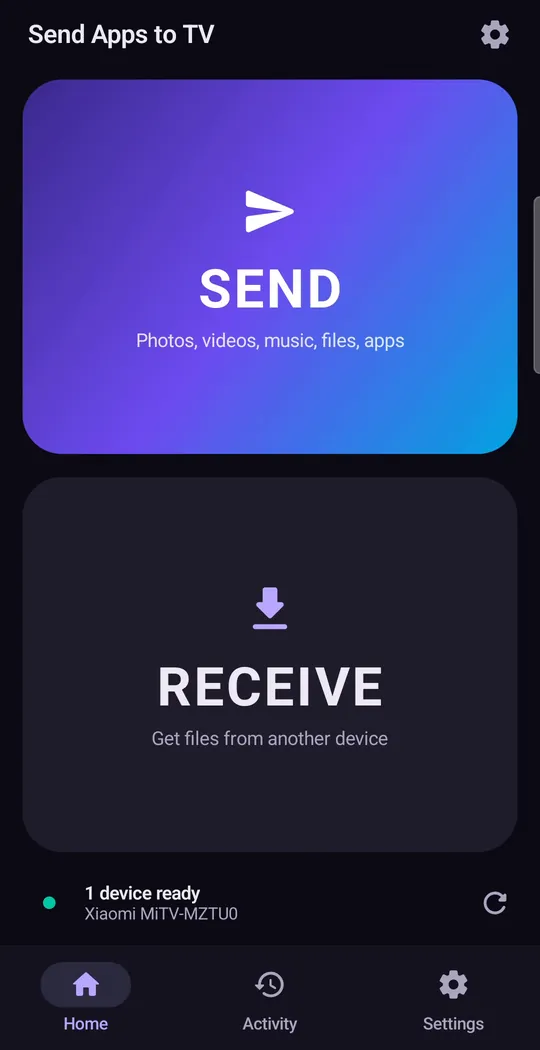
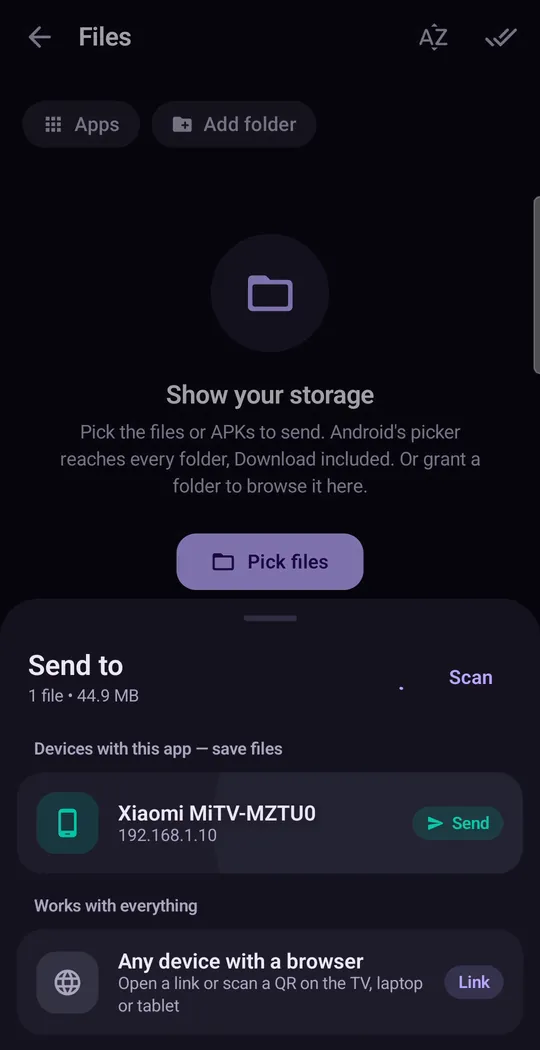
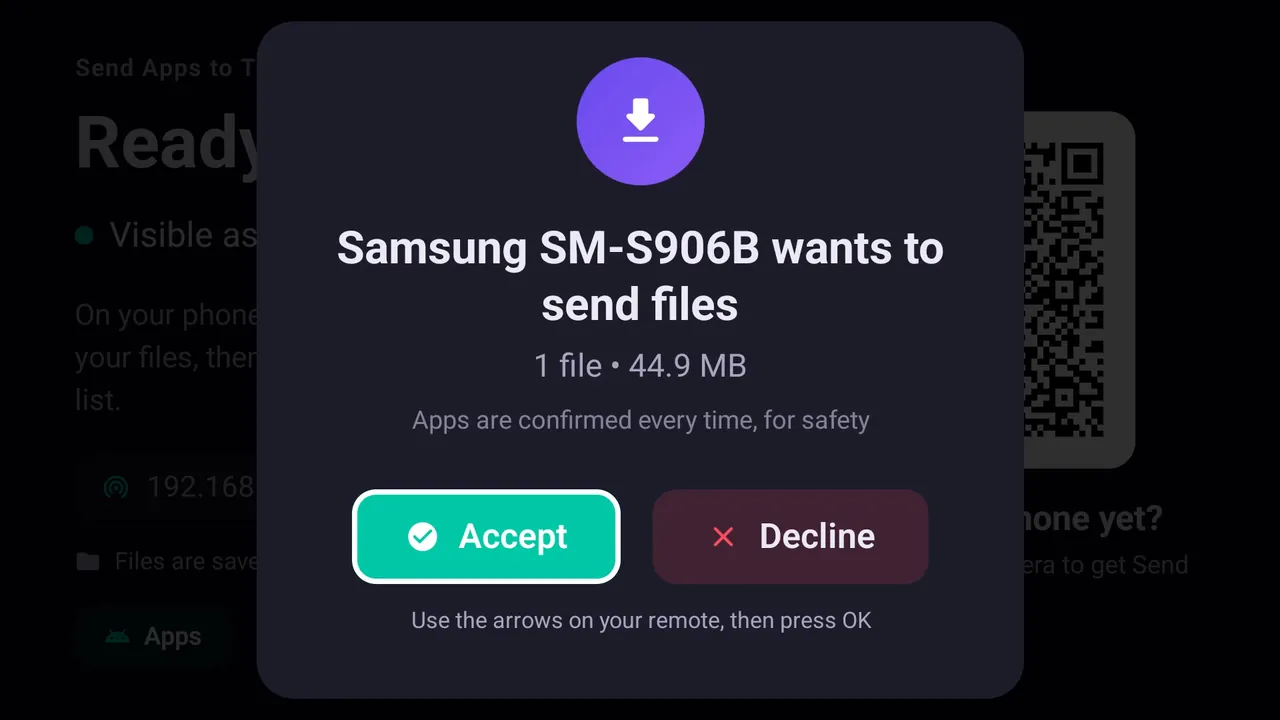
Sending VLC from a Samsung phone to a Xiaomi Mi TV: the TV asks first, then Android's own installer takes over.
Guides
Popular guides
Most guides assume every TV is the same. They are not — so these start by working out what you actually own.
Install apps on TV
Sideload APK, XAPK and split APK files on Android TV, Google TV and Fire TV from your phone, USB or ADB, and which TVs cannot.
How to Install APK on Android TV (From Your Phone, USB or ADB)
Four ways to sideload: from your phone (no USB, no PC), USB stick, Downloader or ADB.
How to Install an APK on Android TV From a USB Stick
USB stick + file manager, step by step, and when sending from your phone is easier.
How to Install APK on Google TV (Streamer, Chromecast, TCL, Sony)
Chromecast with Google TV, TCL and Sony: where Unknown sources lives.
How to Install APK on Xiaomi Mi TV, Mi Box and Mi TV Stick
Tested on a Mi TV with Android TV 14, including the storage fix.
How to Install APK on a TCL Smart TV (Google TV and Android TV)
Which TCL systems can sideload, and which (Roku) cannot.
Can You Install APK Files on a Samsung, LG or Roku TV?
Why APKs can't install on Tizen, webOS, Roku or VIDAA, and what works instead.
How to Sideload a Fire TV Stick: From Your Phone, Downloader or ADB
Phone, Downloader or ADB, and which new Fire TV Sticks (Vega OS) can't sideload at all.
How to Install XAPK, APKS and Split APK Files on Android TV
XAPK, APKS and APKM bundles: why they fail with "app not installed", and how to install them on a TV.
Best Apps to Sideload on Android TV, Google TV and Fire TV (Legal Picks, 2026)
Legal picks worth having on a TV: VLC, Kodi, Jellyfin, Moonlight and more.
Send & cast
Send photos, video and files to a TV, and cast by brand.
How to Send Files From Your Phone to Android TV
Photos, videos, PDFs and APKs from phone to TV over Wi-Fi. Files stay on the TV.
How to cast to a Hisense TV from your phone
VIDAA models have no Google Cast at all. Here is what does work.
How to cast to a TCL TV from your phone
Roku, Google TV, Android TV and Fire TV — four systems, four methods.
What replaced Samsung Smart View?
It moved rather than vanished — and the desktop version really is gone.
Fix problems
"App not installed", "problem parsing the package", missing apps, and casting that will not connect.
Fix "App Not Installed" on Android TV (and "Not Enough Space")
Storage, signatures, CPU type, Android version: every cause and its fix.
Fix "There Was a Problem Parsing the Package" on Android TV
Incomplete downloads, split APKs, Android version, CPU type: find your cause.
Installed App Not Showing on Android TV? How to Find and Open It
Phone apps hide from the TV home screen. How to open and pin them.
Screen mirroring not working? Work through this in order
Nine times in ten it is Wi-Fi bands, router isolation, or a feature your TV does not have.
Compatibility
Which TVs can install APKs?
| TV system | Install APKs? | Guide |
|---|---|---|
| Android TV, Google TV (Sony, TCL, Xiaomi, Philips, Chromecast, TV boxes) | Yes | Android TV, Google TV |
| Fire TV with Fire OS (4K Max, 4K Plus, Cube) | Yes | Fire TV Stick |
| Fire TV with Vega OS (4K Select, new Fire TV Stick HD) | No | Amazon Appstore only |
| Samsung (Tizen), LG (webOS), Roku, Hisense VIDAA | No | What works instead |
Will my TV work for casting?
FAQ
Questions people ask
Do I need to install anything on the TV?
For casting photos, video or music over DLNA, no. For sending files that stay on the TV, or installing apps, you install the same free app on Android TV, Google TV or Fire TV.
How do I send an APK to my TV?
Open SATV on the phone and the TV, pick the app or APK file on the phone, choose the TV, accept on the TV and press Install. Split APKs, XAPK and APKM files are installed in one go.
What is the best app to send files to TV?
Look for one that works over your own Wi-Fi without an account, has no file size limit and keeps the file on the TV. SATV does all three, and installs apps too.
Can I use it from an iPhone?
No. SATV runs on Android phones. On the TV side it works with Android TV, Google TV and Fire TV.
Why is my phone not screen casting to my TV?
Usually because the TV lacks the method you are using: Google Cast is missing from most Samsung, LG, Hisense VIDAA, Roku and Fire TV sets. Streaming apps also show a black screen when mirrored, which is copy protection and cannot be bypassed. See screen mirroring not working.
Is there a file size limit?
No. A 4 GB video moves as easily as a photo, and transfers keep running while the app is in the background.
Does it need internet?
No. Everything happens over your local Wi-Fi. If your router is on but your internet is down, transfers still work.
Get it free
No cable, no cloud, no account. Works with Android TV, Google TV, Fire TV, and any smart TV that speaks DLNA.
Get it free on Google Play