
Install apps on TV
How to Sideload a Fire TV Stick: From Your Phone, Downloader or ADB
To sideload a Fire TV Stick, first turn on Developer options and "Install unknown apps" (Settings › My Fire TV › Developer options). Then either send the app from your Android phone with SATV, download the APK on the Fire TV with Downloader, or push it from a computer with ADB. Sending from the phone is the quickest: no URL typing, no PC, and split APKs install properly. Some newer models, such as the Fire TV Stick 4K Select, run Amazon's Vega OS instead of Fire OS and cannot install APK files at all.
On this page
Fire TV runs Fire OS, Amazon's version of Android, but it has no Google Play Store. Everything that is not in the Amazon Appstore has to be sideloaded: you install the APK file yourself. This guide covers the three methods that work in 2026, the settings you need first, and how to tell whether your Fire TV Stick can sideload at all.
Can your Fire TV Stick sideload? Fire OS vs Vega OS
Amazon has started moving its streaming sticks to Vega OS, a Linux-based system that only runs apps from the Amazon Appstore. Amazon has stated that starting with the Fire TV Stick 4K Select, all future Fire TV Sticks will run Vega OS. Vega OS models cannot install Android APK files, so no sideloading method, including the ones on this page, works on them.
| Fire TV device | Sideload APK? | Notes |
|---|---|---|
| Fire TV Stick 4K Max | Yes | Fire OS |
| Fire TV Stick 4K Plus | Yes | Fire OS |
| Fire TV Cube | Yes | Fire OS |
| Fire TV Stick Lite, older Fire TV Stick and Fire TV Stick 4K models | Yes | Fire OS; check the About screen if unsure |
| Smart TVs with Fire TV built in | Yes | Fire OS; About is under Device & Software |
| Fire TV Stick 4K Select | No | Vega OS, Amazon Appstore apps only |
| New Fire TV Stick HD (2026, second generation) | No | Vega OS; Amazon's product page warns it prevents installing apps from unknown sources |
How to check: open Settings › My Fire TV › About and look at the software version. "Fire OS" followed by a number means your device can sideload. If it only says "OS" and the version starts with 1, it runs Vega OS. Reports also list the newest third-generation Fire TV Stick 4K as a Vega OS device, so check that screen before buying a stick for sideloading. If yours is Vega OS and you want Android apps, a Google TV or Android TV stick is the practical fix; see installing APKs on Google TV.
Step 0: enable Developer options and Install unknown apps
- Open Settings › My Fire TV › Developer options. If Developer options is missing, go to Settings › My Fire TV › About and click your device name (for example "Fire TV Stick 4K Max") seven times, until a message says you are a developer. Go back and Developer options appears.
- Turn on "Install unknown apps" and switch on the app you will install with: Downloader, the Silk browser, or SATV. Older Fire OS versions have a single "Apps from Unknown Sources" switch instead.
- Turn on ADB debugging only if you plan to use Method 3 from a computer.
These settings are what Amazon provides for installing your own software. Only install apps you have the right to use, from sources you trust; an APK from a random website can contain anything.
Method 1: Sideload Firestick apps from your phone with SATV
This is how to install an APK on a Firestick from your phone without typing links. SATV has to run on both devices: the phone sends, the Fire TV receives and installs. Fire TV has no Google Play, so the Fire TV copy of SATV comes from your phone the first time.
- Install SATV on your Android phone. Get SATV: Send APK & Files to TV from Google Play.
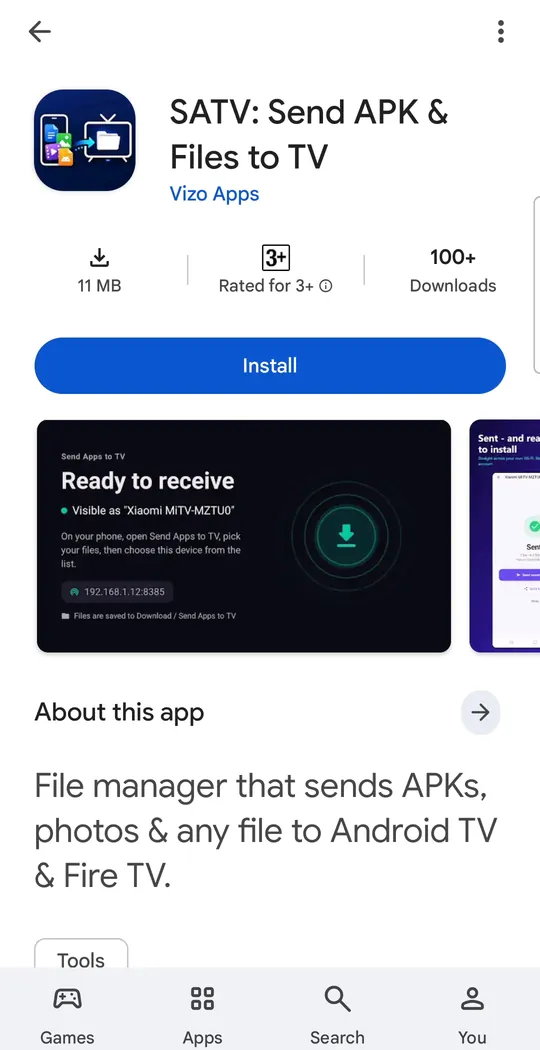
SATV in Google Play on the phone. - Put both on the same Wi-Fi. Same network, ideally the same band. Avoid guest networks.
- Get the Fire TV address from the phone. In SATV on the phone, choose Send and then Any device with a browser (Link). The phone shows an address in the form
http://<phone-ip>:8385/tvto type on the TV. - Download SATV on the Fire TV. Type that address into Downloader (from the Amazon Appstore) or the Silk browser on the Fire TV and download the TV app. Install it when the installer opens, then open SATV on the Fire TV.
- Pick what to send on the phone. Choose an app already installed on your phone, or an APK, APKS, XAPK or APKM file you have.
- Choose the Fire TV. It appears in SATV's device list under its own name.
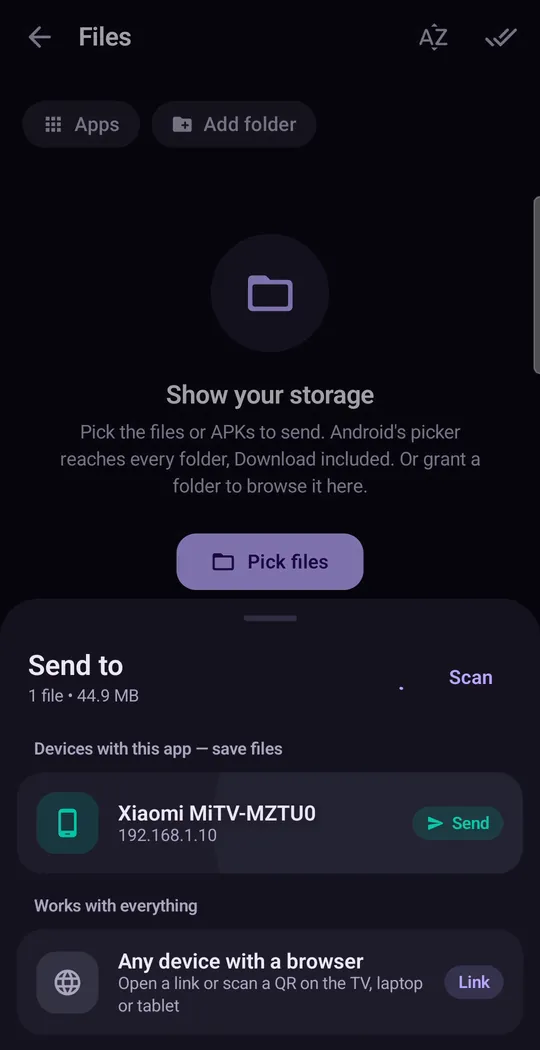
The phone side: pick the file, then the TV. Shown with our Xiaomi Mi TV as receiver; a Fire TV running SATV appears in the same list. - Accept and install on the Fire TV. Accept the transfer with the remote. If Fire OS asks, allow SATV under Install unknown apps, then press Install on the installer screen.
From then on, sending another app to the Firestick takes a few seconds. Because SATV sends installed apps with all their split parts, it also answers "how to install XAPK on Firestick": our XAPK and split APK guide explains the formats.
Method 2: Install APK on Firestick using Downloader
Downloader is a free app by AFTVnews and the most common way to sideload a Fire TV Stick without a phone.
- On the Fire TV, search for Downloader and install it from the Amazon Appstore.
- Allow Downloader under Settings › My Fire TV › Developer options › Install unknown apps.
- Open Downloader, type the APK's web address (or a short Downloader code that points to it) and press Go.
- When the download finishes, press Install, then delete the APK file to save space.
Downloader is fine for apps with a short official link, such as VLC from videolan.org or Kodi from kodi.tv. Typing long addresses with a remote is slow, it installs single APKs only, and it cannot reach an app that only exists on your phone. Use links and codes only for legal apps from their developers; our best apps to sideload list has good examples.
Method 3: Sideload a Fire TV Stick with ADB from a PC
- Turn on ADB debugging in Developer options.
- Find the Fire TV's IP address in Settings › My Fire TV › About › Network.
- On a computer with Google's platform-tools, run
adb connect <firetv-ip>and allow the connection on the TV. - Run
adb install app.apk, oradb install-multiplewith every part of a split APK.
This is the route for installing an APK on a Firestick from a PC, and the most flexible, but it needs a computer every time. Turn ADB debugging off afterwards.
Which sideloading method is best?
| Method | Needs | Split APKs? | Best for |
|---|---|---|---|
| SATV from your phone | Android phone, SATV on phone and Fire TV | Yes | Apps already on your phone; sideloading Firestick without Downloader links |
| Downloader | A direct download link or code | No | Apps with a short official link |
| ADB | A computer, ADB debugging on | Yes (install-multiple) | Developers and batch installs |
APK not installing on Firestick? Common causes
| Message | Cause | Fix |
|---|---|---|
| App not installed | Split APK: only the base file of a multi-part app was sent | Send the complete APKS/XAPK, or use a tool that handles split APKs |
| App not installed | Wrong CPU architecture: an arm64-only build on a 32-bit system | Get the universal or armeabi-v7a build |
| There was a problem parsing the package | The app needs a newer Android version than the Fire TV runs, or the file is incomplete | Download again or find an older release; see the parsing error guide |
| Install blocked | Install unknown apps is still off for the sending app | Enable it for that specific app in Developer options |
| Not enough space | Sticks have little storage | Uninstall unused apps and clear caches |
The full list of causes and fixes is in our App not installed fix guide. If the app installed but you cannot find it, look at the end of the app library, or read sideloaded app not showing.
If the Fire TV does not appear in SATV
- Different Wi-Fi bands: the phone on 5 GHz and the stick on 2.4 GHz is the most common cause.
- AP isolation on the router blocks devices from seeing each other. Turn it off.
- Guest network: move the phone to the main network.
- SATV not open on the Fire TV: open it so it is ready to receive.
- Still nothing? Work through the full network checklist.
Questions people ask
Can I sideload apps on the Fire TV Stick 4K Select?
No. The Fire TV Stick 4K Select runs Vega OS, which only installs apps from the Amazon Appstore. The same applies to the new second-generation Fire TV Stick HD.
Can you sideload apps on a Firestick 4K Plus or 4K Max?
Yes. Both run Fire OS. Enable Install unknown apps in Developer options and use any method on this page.
How do I enable Developer options on Fire TV?
Go to Settings › My Fire TV › About and click the device name seven times. Developer options then appears under My Fire TV.
Can I sideload a Firestick without Downloader?
Yes. Send apps from your Android phone with SATV, or use ADB from a computer. You only need a browser or Downloader once, to fetch SATV's TV half.
Can I install an APK on a Firestick from an iPhone?
Not with SATV: the sending app is Android-only. From an iPhone, the realistic options are Downloader with the app's official link, or ADB from a computer.
Can I install an APK on a Firestick from USB?
Fire TV Sticks have no standard USB port, only the power port. With an OTG adapter and a file manager it can work, but sending from the phone or Downloader is far easier.
How do I install an XAPK on Fire TV?
Send the XAPK from your phone with SATV, which installs all the split parts together. A plain installer or Downloader cannot open an XAPK.