
Install apps on TV
How to Install APK on Xiaomi Mi TV, Mi Box and Mi TV Stick
To install an APK on a Xiaomi Mi TV or Mi Box, install SATV from Google Play on the TV and on your Android phone, connect both to the same Wi-Fi and send the app from the phone. Accept on the TV, allow SATV under Settings > Device Preferences > Security & restrictions > Unknown sources if asked, and press Install. If the Mi TV says "not enough space", clear storage of a large unused preinstalled app in Settings > Apps.
On this page
Xiaomi's TV range runs Google's TV software almost everywhere outside China: the Mi Box S and Mi TV Stick run Android TV, Mi TV models such as the P1 and Q series run Android TV with Xiaomi's PatchWall launcher on top, and newer Xiaomi TV A and A Pro models run Google TV. All of them install APKs the same way, so if you are wondering whether you can install an APK on a Xiaomi TV box or stick: yes. This guide is based on our own test on a Xiaomi Mi TV running Android TV 14. For every other method, including ADB, see the main guide on how to install APK on Android TV.
Our test: VLC on a Mi TV with Android TV 14
We sent VLC from a phone to the Mi TV with SATV. The TV showed the accept prompt, then the installer, and then stopped with "not enough space". The storage was not full of our own apps; it was preinstalled software and its cached data. We went to Settings → Apps, chose one large preinstalled app we never used, and cleared its storage and cache. The second attempt installed VLC on the first try. That is why checking space is step one below.
Steps: install an APK on Mi TV or Mi Box from your phone
- Check free space on the Mi TV. Open Settings → Device Preferences → Storage. Xiaomi TVs ship with many preinstalled apps, so space is often tight.
- Install SATV on the Mi TV. Open the Google Play Store on the TV (from the Apps section, or from PatchWall's apps list), search for SATV and install it.
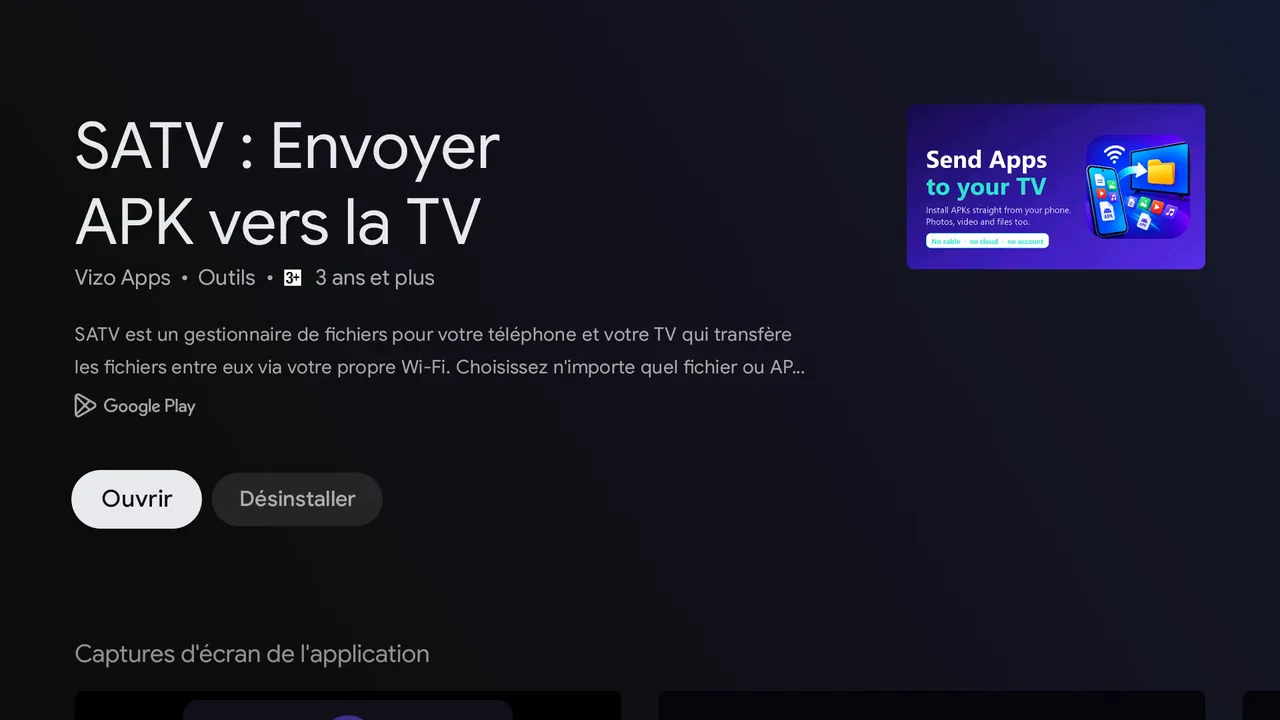
The same app in the TV's Google Play Store (after installing). Xiaomi Mi TV, French interface. - Install SATV on your phone. Install the same app from Google Play on your Android phone. Any Android brand works, not only Xiaomi.
- Join the same Wi-Fi. Connect the phone and the TV to the same network.
- Send the app. Open SATV on the TV, then on the phone pick an installed app or an APK / XAPK / APKS / APKM file, and choose the Mi TV in the device list.
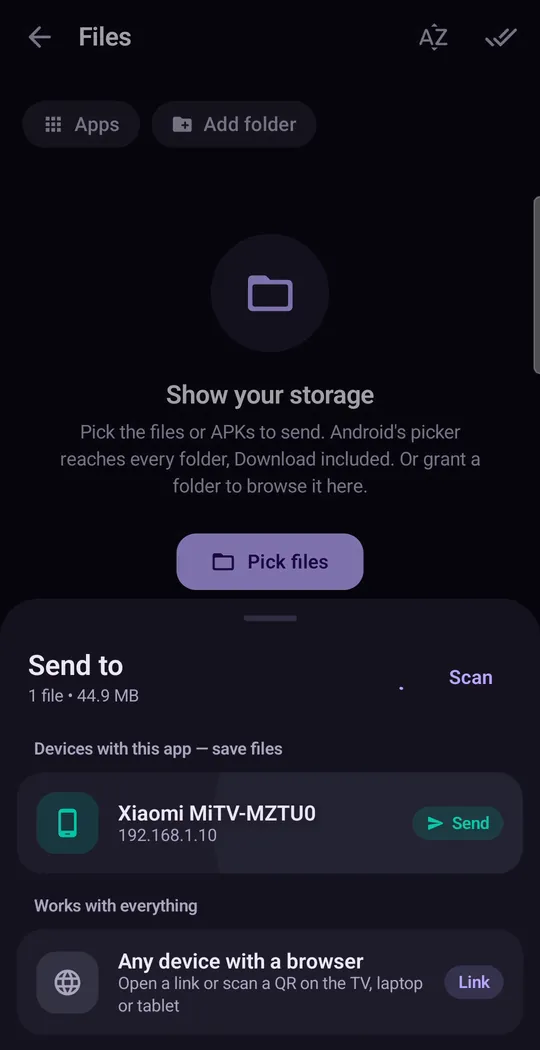
Choosing the TV on the phone. TVs running SATV appear under Send to. - Accept and allow. Accept the transfer on the TV. If the TV blocks the install, open the settings shortcut and allow SATV as an unknown source.
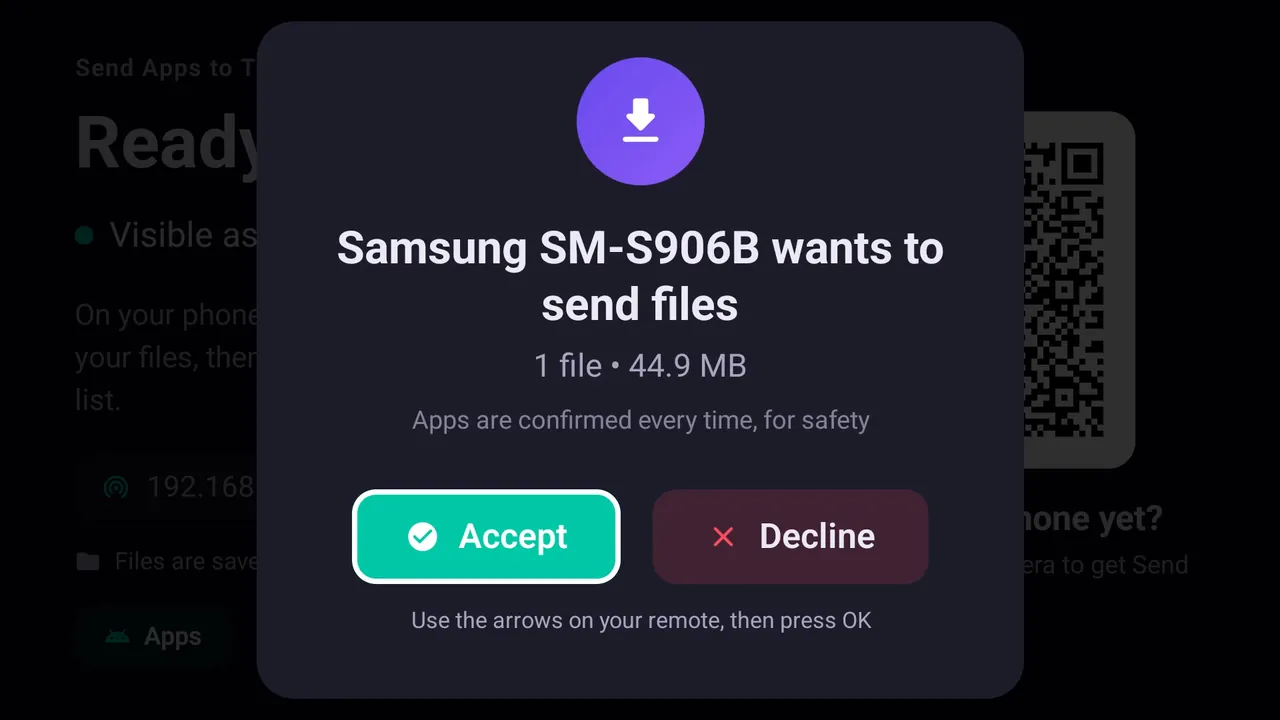
The TV asks before anything is received. Select Accept with the remote. - Install. Press Install on the Android installer screen, then Open.
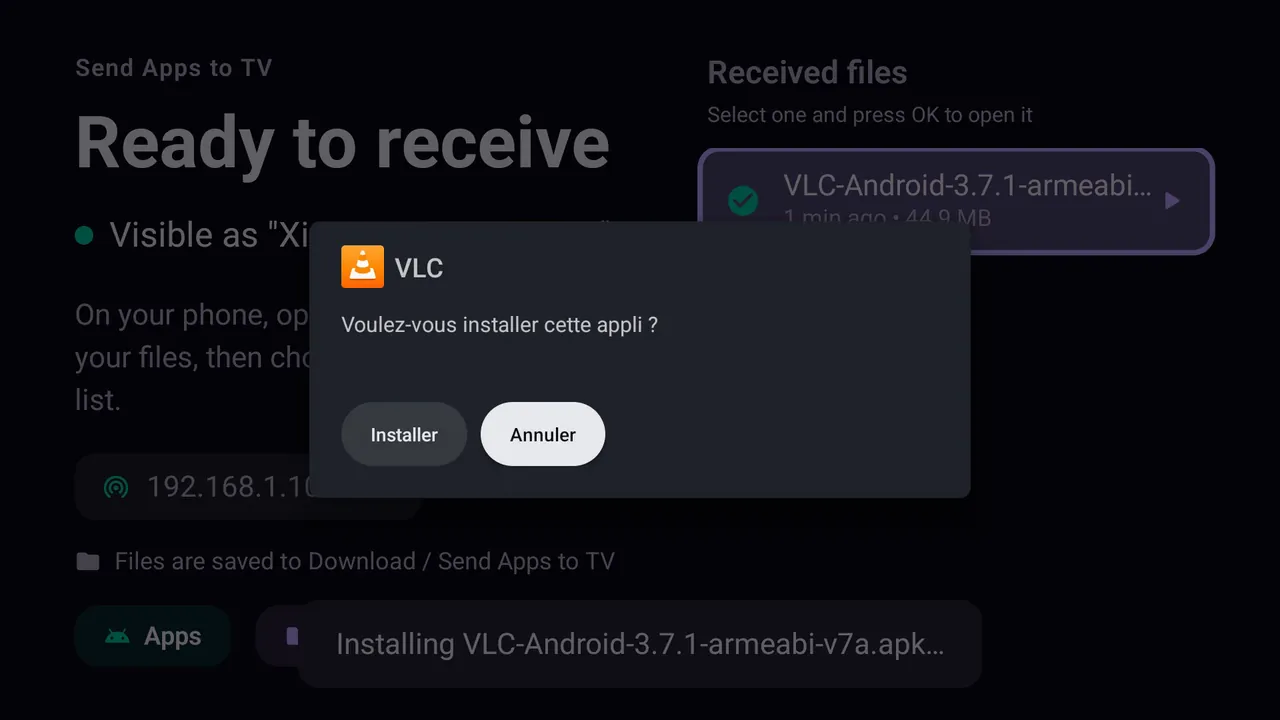
Android's own installer on the TV. Installer means Install. Xiaomi Mi TV, French interface. - If it says not enough space. Go to Settings → Apps → See all apps, open a large preinstalled app you do not use, choose Clear cache and Clear storage, then send the app again.
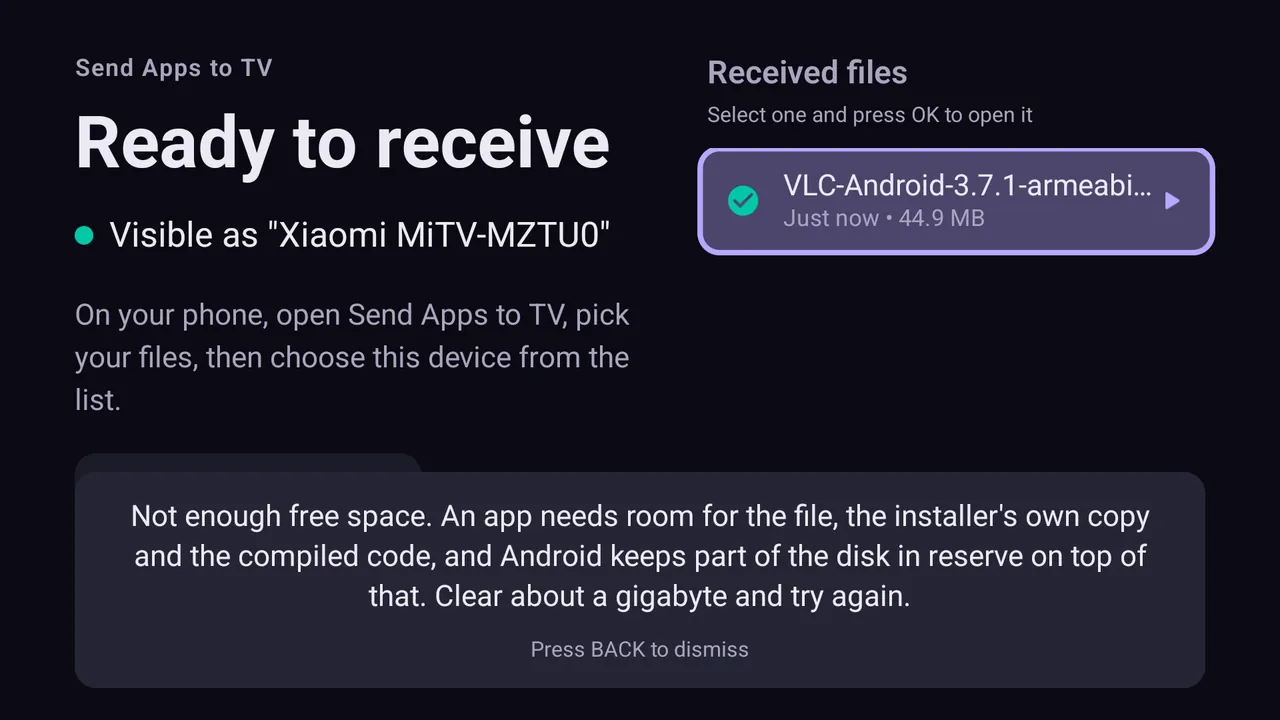
The "not enough free space" message we hit on the Mi TV before clearing storage.
Unknown sources on Xiaomi TVs
Like all Android TV devices since Android 8, Xiaomi asks you to approve each app that wants to install other apps. The switch is usually here:
- Mi Box S, Mi TV Stick, Mi TV with PatchWall (Android TV): Settings → Device Preferences → Security & restrictions → Unknown sources
- Xiaomi TV A / A Pro and other Google TV models: Settings → Apps → Security & restrictions → Unknown sources
Turn on SATV in the list. If you cannot find it, start an install and use the shortcut Android shows when it blocks it.
Finding the app in PatchWall
PatchWall is Xiaomi's content-first home screen. TV-ready apps appear in its Apps section. Phone apps without a TV banner may not appear on the home screen at all. Open them from Settings → Apps → See all apps → [app] → Open. If you switch the TV to the stock Android TV home (some models let you choose), the same rule applies. More options in our guide to sideloaded apps not showing.
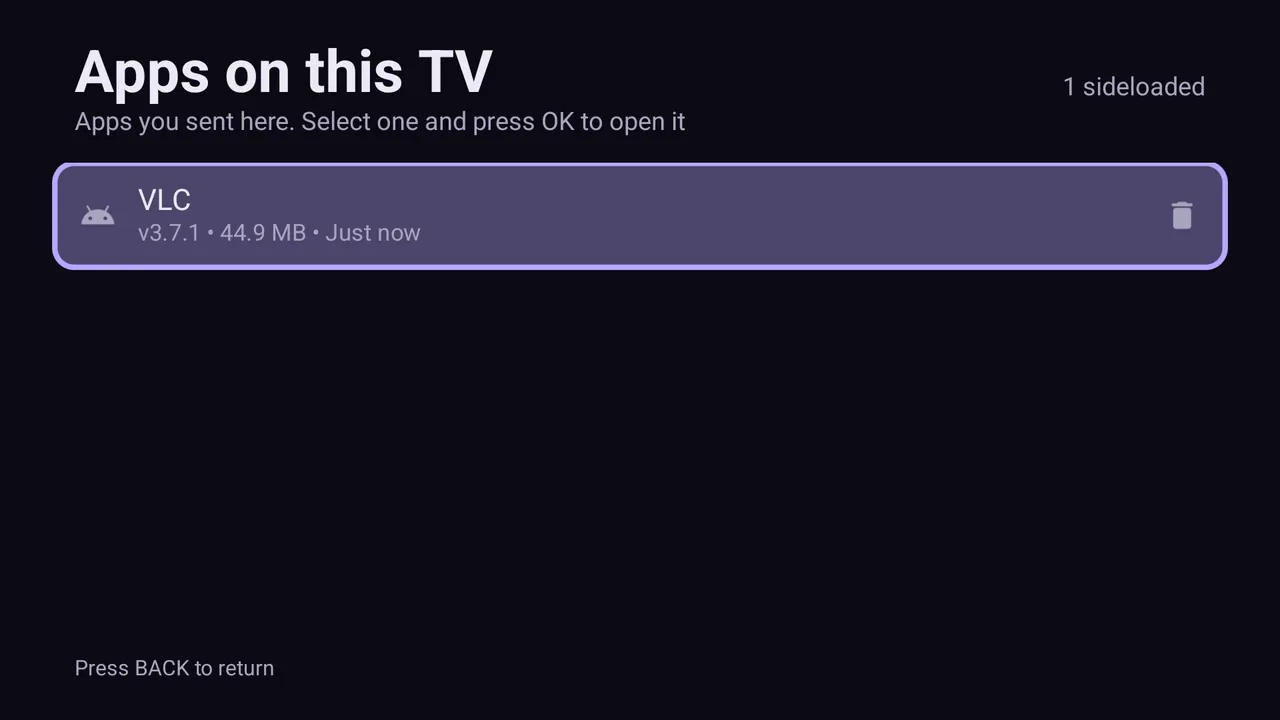
Freeing space on a Mi TV
Storage is the most common obstacle on Xiaomi TVs. A few habits keep enough room free:
- Clear cache of streaming apps every so often. Their caches grow with use.
- Uninstall or disable preinstalled apps you do not use. Disabling keeps the app but frees its updates and data.
- Check the storage screen before installing a large app or game. Installing needs more space than the app's final size.
Clearing storage resets an app to its first-run state. That is harmless for apps you never open, but you will need to sign in again if you clear one you use.
Install APK on Mi TV Stick or Mi Box from USB
The Mi Box S has a USB port, so the USB method works: copy the APK to a FAT32 stick, plug it in, open it with a file manager such as X-plore, allow the file manager under Unknown sources and press Install. The Mi TV Stick only has a power port, so installing an APK on a Mi TV Stick from USB needs an OTG adapter; sending the app over Wi-Fi from your phone is much simpler there. The full walkthrough is in install APK on Android TV from USB. USB works for single APK files only, not XAPK bundles.
Mi Box and Mi TV Stick notes
The Mi Box S and Mi TV Stick are popular, low-cost boxes, and their storage fills up quickly. Budget boxes like these often run a 32-bit Android system, so if an app refuses to install even with free space, look for an armeabi-v7a build of it. Our split APK guide explains how architecture affects bundles, and "There was a problem parsing the package" covers the error you get when a build does not match.
Chinese-market Xiaomi TVs
TVs sold for the Chinese market run a different PatchWall system without Google Play. SATV's TV half cannot be installed from Play there; this guide targets the international Android TV and Google TV models.
Questions people ask
Can I install APK on a Xiaomi TV box or Mi TV?
Yes. International Mi TV, Mi Box and Mi TV Stick models run Android TV or Google TV and install APKs once you allow an app as an unknown source.
How do I fix Not enough space on Mi TV?
Open Settings > Apps, pick a large preinstalled app you do not use, and clear its cache and storage. That is what fixed it on our Android TV 14 Mi TV.
How do I install an APK on a Mi TV Stick?
Send it from your phone with SATV over Wi-Fi, because the stick has no USB data port. Allow SATV under Settings > Device Preferences > Security & restrictions > Unknown sources when asked.
Where is Unknown sources on Mi Box S?
Settings > Device Preferences > Security & restrictions > Unknown sources. Turn on the app you are installing with, such as SATV.
Why can't I see my sideloaded app in PatchWall?
Phone apps lack a TV banner, so PatchWall and the Android TV home do not list them. Open them from Settings > Apps > See all apps.
Do I need a Xiaomi phone?
No. Any Android phone with SATV can send apps to a Mi TV.