
Fix problems
Installed App Not Showing on Android TV? How to Find and Open It
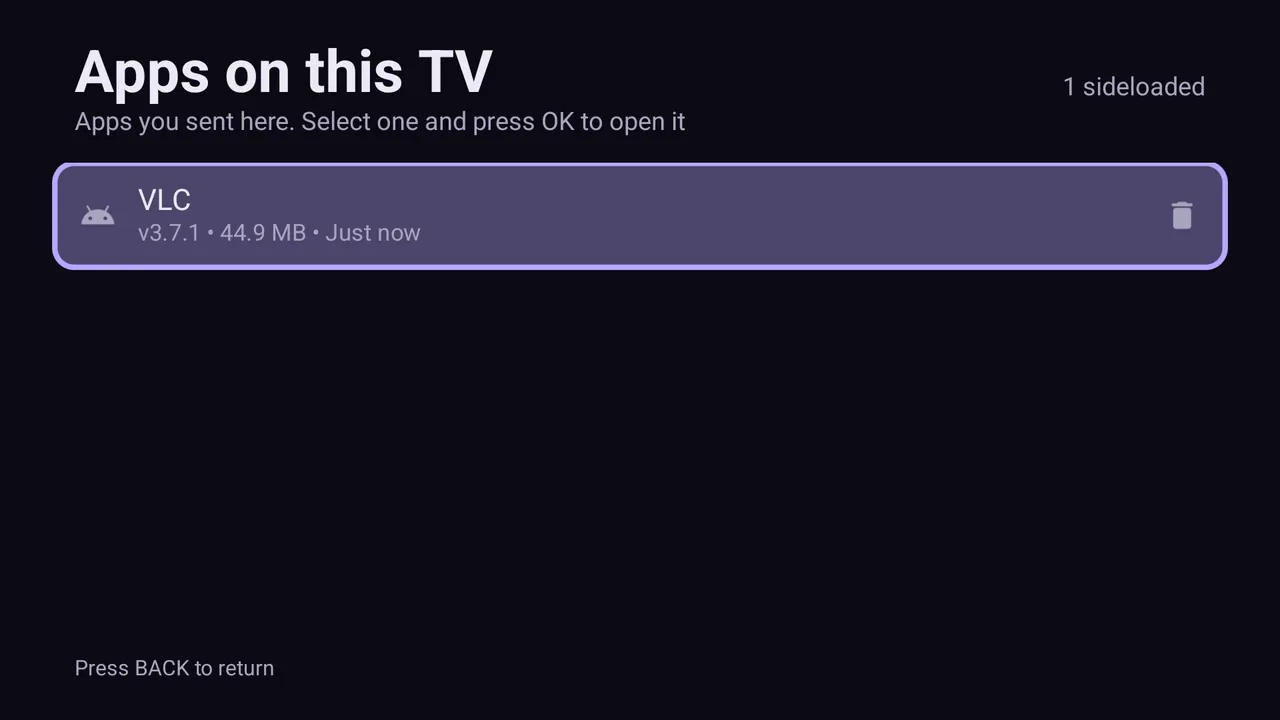
A sideloaded app is usually installed but hidden, because the Android TV and Google TV home screens only show apps that declare a TV launcher entry and banner, and most phone apps do not. Open it from Settings > Apps > See all apps > [the app] > Open, or install a launcher that lists every app.
On this page
You sent an app to your TV, the installer said "App installed", and now it is nowhere to be found. Do not install it again: it is almost certainly there. This is one of the most common surprises after sideloading, and it has a simple explanation.
Why it happens
Android apps tell the system how they can be launched. Phone apps declare a normal launcher entry, which phone home screens show. Android TV launchers look for a different entry, the Leanback launcher category, plus a wide TV banner image. Apps built for TV have both. Phone-only apps do not, so the TV home screen leaves them out even though they are installed and may work perfectly well with a remote.
This is not a bug in the installer, and it does not depend on how you sideloaded: USB, ADB or sending from your phone with SATV all give the same result for the same app (the methods are compared in how to install APK on Android TV). The same rule applies to sideloaded apps not showing on Google TV, whose home screen uses the same TV launcher entry.
How to open sideloaded apps on Android TV
- Open Settings. Press the gear icon on the home screen or the settings button on your remote.
- Go to Apps. Select Apps, then See all apps (on some TVs: Installed apps or Downloaded apps).
- Find the app. Scroll to the app you installed. If it is not in the list, it did not install; see the install fix guide.
- Select Open. On the app's info page, choose Open. The app launches like any other.
- Make it easier next time. If you use the app often, install a launcher that lists all apps, or a shortcut app, so you do not need to go through Settings.
Where to look on each platform
| Platform | TV-ready apps | Phone-only apps |
|---|---|---|
| Android TV | Apps row on the home screen, or the Apps list | Settings > Apps > See all apps > Open |
| Google TV | Apps tab > Your apps > See all | Settings > Apps > See all apps > Open |
| Fire TV | App library (three-squares icon), usually at the end | App library, or Settings > Applications > Manage Installed Applications > Launch application |
| Xiaomi Mi TV (PatchWall) | Apps section of PatchWall | Settings > Apps > See all apps |
Fire TV is more forgiving: its app library generally lists sideloaded phone apps too, often with a plain icon instead of a banner. If you are still setting up a Fire TV, see how to sideload a Fire TV Stick; for Google TV menus, see install APK on Google TV.
Installed apps not showing on the home screen after an update?
A system or launcher update can reset the home screen's favourites row, so apps you had pinned seem to vanish. They are still installed: find them in the Apps list (Google TV: Apps tab › Your apps › See all) or in Settings → Apps → See all apps, and add TV-ready apps back to favourites. If an app is gone from Settings → Apps too, it was removed and needs to be installed again.
How to add a sideloaded app to the Android TV home screen
Only apps with a TV banner can be pinned to the favourites row: select the app in the Apps list, hold OK and choose the option to add it to favourites. For phone-only apps, use one of the fixes below; a launcher or shortcut app is the only way to get them onto the home screen.
Better fixes for apps you use often
Use a launcher that shows every app
Alternative TV launchers such as Projectivy Launcher list all installed apps, including phone-only ones, and let you arrange them as you like. You can install one from Google Play on many TVs, or send it from your phone with SATV.
Use a sideload launcher (shortcut app)
Small "sideload launcher" style apps exist whose only job is to show a grid of every installed app. They appear on the TV home screen themselves, so they work as a folder for everything else.
Check for a TV version of the app
Some apps have a separate TV edition with its own banner and remote-friendly interface. If it exists, it will usually work better than the phone version.
The app opens but is hard to use
Phone apps expect a touchscreen. With a TV remote you may find buttons you cannot reach, or the screen stuck in portrait. A few things help:
- Pair a Bluetooth mouse or keyboard with the TV. Most Android TV devices support them.
- Look in the app's settings for a "TV mode", "landscape" or "remote control" option.
- Choose a different app made for big screens. Our list of apps worth sideloading focuses on ones that work with a remote.
How to confirm the app actually installed
If it is not in Settings → Apps → See all apps either, the install did not complete. Common reasons are storage, an existing version of the app signed by a different developer key, or an incompatible APK. Our App not installed guide covers each one.
Questions people ask
Why is my installed app not on the Android TV home screen?
The home screen only shows apps with a TV launcher entry and banner. Phone apps lack these, so they are hidden even though they are installed.
How do I open a sideloaded app on Google TV?
Go to Settings > Apps > See all apps, select the app and choose Open. A launcher that lists all apps makes this quicker.
Where do sideloaded apps go on Fire TV?
Into the app library, usually at the end of the list. You can also launch them from Settings > Applications > Manage Installed Applications.
Can I add a phone app to the Android TV favorites row?
Usually not directly, because it lacks a TV banner. Use an alternative launcher or a shortcut app that appears on the home screen and opens it.
Did SATV install the app correctly if it is not on the home screen?
Yes, if the app appears in Settings > Apps. Visibility on the home screen depends on the app itself, not on how it was installed.