
Install apps on TV
How to Install an APK on Android TV From a USB Stick
To install an APK on Android TV from USB, copy the .apk file onto a USB stick formatted as FAT32 or exFAT, plug it into the TV, open the stick in a file manager on the TV (such as X-plore File Manager), select the APK and allow that file manager under "Install unknown apps" when Android asks. Then press Install. This works for single APK files only: split APK bundles (XAPK, APKS, APKM) need a split APK installer or sending from your phone.
On this page
Installing from a USB stick is the oldest way to sideload apps on Android TV, and it still works on any smart TV or box with a USB port. It needs no network and no account, which makes it handy for a TV that is offline. It also has a few traps, which this guide covers step by step.
What you need
- A USB stick. Small, older sticks are often the most compatible.
- A computer or phone to download the APK and copy it to the stick (a phone needs a USB-C or OTG adapter).
- An Android TV or Google TV with a free USB port. Most streaming sticks, like the Chromecast with Google TV and Mi TV Stick, only have a power port and need a USB hub or OTG adapter.
- A file manager on the TV. Some TVs include one; otherwise install X-plore File Manager or File Commander from the TV's Play Store.
Steps: install APK on Android TV via USB
- Download the APK on your computer. Get it from the developer's own website or another source you trust. Check it is a single
.apkfile, not.xapk,.apksor.apkm. - Format the USB stick if needed. FAT32 is read by almost every TV; exFAT by most recent ones. NTFS often is not. Formatting erases the stick, so copy anything important off it first.
- Copy the APK to the stick. Put it in the root folder, or a folder with a simple name, so it is easy to find with a remote. Eject the stick safely.
- Install a file manager on the TV. Open the Play Store on the TV and install a file manager if the TV does not have one.
- Plug the stick into the TV. Use a USB port on the TV or box. Some TVs show a pop-up asking what to open; choose the file manager.
- Open the APK. In the file manager, open the USB drive, find the APK and select it with OK.
- Allow unknown apps for the file manager. Android says that for security your TV is not allowed to install unknown apps from this source. Choose Settings, switch on the file manager, and go back.
- Press Install. The standard Android installer opens. Press Install, then Open.
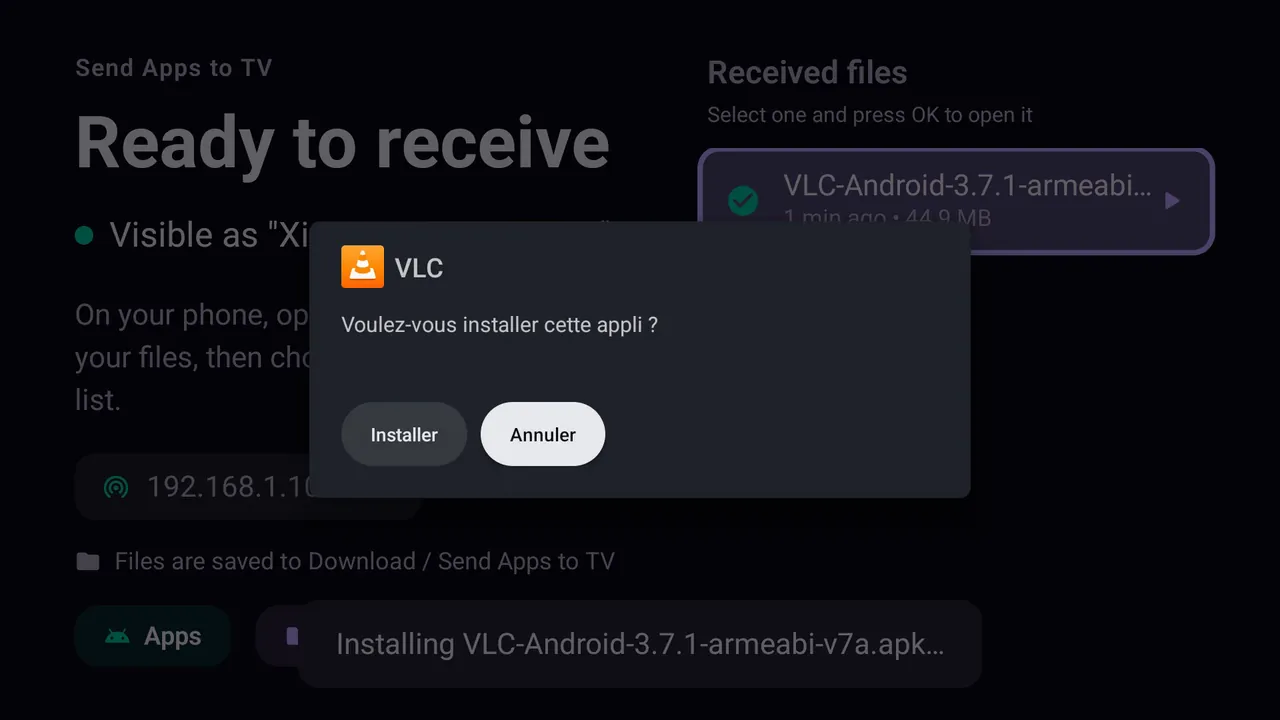
The installer screen is the same whatever the source: USB, Downloader or phone. Xiaomi Mi TV, French interface (Installer = Install).
Where unknown sources is for a file manager
If you missed the prompt, switch it on manually. On most Android TV models it is Settings → Device Preferences → Security & restrictions → Unknown sources; on Google TV, Settings → Apps → Security & restrictions → Unknown sources. Turn on only the file manager you use. Device-specific paths are in our guides for Google TV, Xiaomi Mi TV and Mi Box and TCL TVs.
USB install problems and fixes
The TV does not see the USB stick
Reformat it as FAT32, try another port, or try a smaller stick. Some boxes cannot power large drives through the USB port; a powered hub helps.
The file manager does not show the APK
Give the file manager storage permission when it asks, then reopen the drive. Some built-in media browsers only list photos and videos, so use a full file manager.
"There was a problem parsing the package"
The file is incomplete, is a renamed bundle, or needs a newer Android version than the TV runs. Copy it again and check its minimum Android version. Full list of causes: problem parsing the package on Android TV.
"App not installed"
Usually low storage, an existing copy signed differently, or the wrong CPU build. Work through the App not installed fix guide.
You have an XAPK, APKS or APKM file
A file manager cannot install split APK bundles. Use a split APK installer on the TV, or send the bundle from your phone; see the XAPK installer guide.
USB vs sending from your phone
| USB stick | SATV from your phone | |
|---|---|---|
| Needs | Stick, computer, file manager on TV, a USB port | Android phone, SATV on phone and TV, same Wi-Fi |
| Split APKs (XAPK, APKS, APKM) | No | Yes |
| Apps already on your phone | Need to extract the APK first | Send directly |
| Works offline | Yes | Needs local Wi-Fi, not internet |
| Sticks without USB port | Need a hub or OTG adapter | Yes |
USB is a good choice for one single APK on a TV with a free port. For apps that are already on your phone, bundles, or streaming sticks without a port, sending over Wi-Fi is easier: see all four ways to install APK on Android TV.
After installing
Unplug the stick and delete the APK if you copied it to the TV. If the app is not on the home screen, it is probably a phone app without a TV banner: open it from Settings → Apps → See all apps, or read sideloaded app not showing on Android TV.
Questions people ask
How do I install an APK on a smart TV from USB?
If the TV runs Android TV or Google TV: copy the APK to a FAT32 stick, plug it in, open it with a file manager, allow unknown apps for the file manager and press Install. Samsung, LG and Roku TVs cannot install APKs at all.
Can I install an APK from USB without a file manager?
Rarely. A few TVs have a built-in file browser that opens APKs; most need a file manager app. Sending from your phone with SATV needs no file manager.
Can I install an APK on a Mi TV Stick or Chromecast from USB?
Only with a USB hub or OTG adapter, because those sticks only have a power port. Sending the app over Wi-Fi is simpler.
Which USB format does Android TV read?
FAT32 works almost everywhere, exFAT on most recent TVs. NTFS support varies by model.
Can I install an APK on Google TV from USB?
Yes, on Google TV devices with a USB port or a hub. The steps are the same; unknown sources is under Settings › Apps › Security & restrictions.